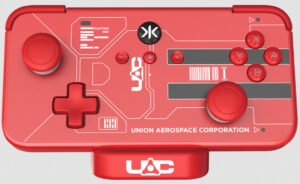
The My Arcade Atari Gamestation Pro is a retro gaming console that brings over 200 officially licensed Atari games from the 2600, 5200, 7800, and arcade libraries to modern TVs via HDMI. Priced around $79.99, it’s a nostalgia-driven plug-and-play system aimed primarily at Gen X-ers who grew up with Atari consoles in the 1970s and early 1980s.
Features:
- Game Library: Includes 201+ games, such as Pong, Asteroids, Centipede, Missile Command, Breakout, and Warlords. The library spans Atari 2600 (82 games), 5200 (7 games), 7800 (10 games), 39 arcade titles, and 63 bonus 8- and 16-bit games, including some Sega Genesis and NES titles.
- Controllers: Comes with two 2.4 GHz wireless joysticks inspired by the original Atari 2600 design, featuring integrated paddles for games like Breakout with three sensitivity settings. Controllers require 4 AA batteries each but can also be powered via USB-C
- Connectivity: HDMI output for easy TV connection, USB-C power for the console, and two USB-C ports for wired controller options.
- Expandability: A microSD card slot allows users to add ROMs for Atari 2600 (.a26), 5200 (.a52), 7800 (.a78), NES (.nes), Sega Genesis (.bin), SNES (.sfc), Game Boy (.gb), Game Boy Color (.gbc), Game Boy Advance (.gba), PC-Engine/TurboGrafx-16 (.pce), and MAME arcade games.
- Save States: Offers two save slots via onboard memory and two via microSD for supported games.
- Design: Compact (0.75 lbs for the console, 0.35 lbs per joystick) with dynamic RGB LED lights for a retro-modern aesthetic.
The microSD slot is a standout feature, allowing users to add ROMs for Atari 2600 (.a26), 5200 (.a52), 7800 (.a78), NES (.nes), Sega Genesis (.bin), SNES (.sfc), Game Boy (.gb), Game Boy Color (.gbc), Game Boy Advance (.gba), PC-Engine/TurboGrafx-16 (.pce), and MAME arcade games. A game changer for collectors, as it lets them play ROMs of games they own without modifying original hardware.
Instructions for Adding ROMs to the Atari Gamestation Pro:
Prerequisites
1. Firmware Update:
- Ensure your console is updated to firmware version 1.30 or higher, as earlier versions have limited SD card compatibility.
Steps to Update Firmware:
Requirements:
- A Windows PC (Mac not supported), a USB-C cable with data support (the included cable is power-only), a paper clip or pin, and a program like WinZip or 7-Zip to extract files.
- Download the firmware update (version 1.30) from the My Arcade website: Firmware v.1.30.
- Extract the ZIP file using WinZip or 7-Zip.
- Connect the console to your PC via a data-capable USB-C cable.
- Use a paper clip to press the reset button on the console (check My Arcade’s instructions for the exact location).
- Follow the on-screen prompts on your PC to install the firmware. This process requires some technical know-how.
2. MicroSD Card:
- Use a microSD card (e.g., SanDisk 64GB recommended) formatted as exFAT.
- Takes cards up to 128GB, though 32GB or 64GB is sufficient for thousands of ROMs.
3. ROM Files:
- Source ROMs from legal or reputable sites.
Compatible file extensions:
- Atari 2600: .a26
- Atari 5200: .a52
- Atari 7800: .a78
- NES/Famicom: .nes
- Sega Genesis/Mega
- Drive: .bin or .gen
- SNES/Super Famicom: .sfc
- Game Boy/Game Boy Color: .gb, .gbc
- Game Boy Advance: .gba
- PC-Engine/TurboGrafx-16: .pce
- MAME arcade: Varies (e.g., .zip for MAME 0.37b5 or 0.139 reference sets)
4. Optional Tools:
- Advanced Renamer: For organizing and renaming ROM files for better compatibility.
- A wired controller (e.g., Xbox One, PS4) for better gameplay, as the included joysticks may have lag or button mapping issues.
Step-by-Step Instructions to Add ROMs
1. Format the MicroSD Card:
- Insert the microSD card into your PC.
- Format it as exFAT using your PC’s disk management tool (e.g., Disk Management on Windows).
- Create a folder named “games” (lowercase) on the root of the microSD card.
2. Organize ROM Files:
- Place ROM files in the “games” folder. For better organization, create subfolders for each system (e.g., “Atari 2600”, “NES”, “Genesis”) – firmware 1.30 supports folder navigation.
- Ensure file extensions match the system (e.g., .a26 for Atari 2600, .nes for NES). For MAME arcade games, keep them in their original .zip format (e.g., MAME 0.37b5 or 0.139 sets).
- Unzip ROM packs if necessary, but MAME ROMs should remain zipped. A Reddit user noted that unzipping MAME ROMs can cause issues, and some ROMs may need renaming for the console to recognize them (e.g., removing “2600” from filenames if using folders).
Example folder structure:
- /games/
/Atari 2600/
game1.a26
game2.a26
/NES/
game1.nes
game2.nes
/MAME/
game1.zip
game2.zip
3. Insert the MicroSD Card:
- Safely eject the microSD card from your PC.
- Insert it into the Gamestation Pro’s microSD slot (located on the console, typically near the USB-C ports).
4. Boot the Console:
- Connect the Gamestation Pro to your TV via HDMI and power it with a 5V, 2A USB-A port (ensure your TV is set to “Game Mode” to reduce lag).
- Turn on the console. It should automatically detect the microSD card and display the added games in the menu under the “games” folder or respective system subfolders.
5. Troubleshooting:
- Card Not Recognized: Ensure the card is exFAT and the folder is named “games” (lowercase). Reformat if needed. The console just goes to the main menu if the card isn’t formatted correctly.
- Games Not Loading: Verify file extensions and firmware version (1.30 required for broader compatibility). Some games may not work due to button mapping issues, especially non-Atari titles.
- Controller Issues: Use a wired Xbox One or PS4 controller via USB-C for better responsiveness, as the wireless joysticks may lag.
- Check YouTube tutorials (e.g., GenXGrownUp’s “Atari Gamestation Pro SUPER SD EXPANSION!” or “How to add games and upgrade MyArcade Gamestation Pro”) for visual guidance.
6. Optional: Custom Firmware:
- Advanced users on AtariAge forums have developed custom firmware to enhance SD card functionality and add box art for ROMs. This requires technical expertise and is not officially supported. Check AtariAge for details (e.g., Brad_from_the_80s’ thread).
- Custom firmware may improve emulation for systems like Commodore PET, Game Boy, or even experimental N64/PS1 cores found in the firmware’s strings dump.
The Atari Gamestation Pro’s 201-game library is a nostalgic mix of Atari 2600, 5200, 7800, arcade, and bonus titles, but it lacks some classics due to licensing. The microSD slot and firmware 1.30 make it highly expandable, supporting thousands of games across multiple systems (Atari, NES, SNES, Genesis, etc.). Adding ROMs is straightforward with an exFAT-formatted microSD card, a “games” folder, and proper file extensions, though users must navigate legal concerns and potential controller mapping issues. YouTube tutorials and forums like AtariAge are invaluable for setup and troubleshooting.